
Description
This guide explains how to create an RSS data source.
See How to create content with a data source for information on creating content using a data source.
Requirements
- Access to “Media and Data”
How to create an RSS data source
- Log in to TEOS Manage.
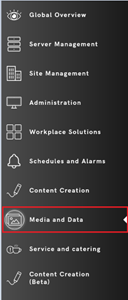
- Navigate to “Media and Data”.
- Select “External Data”.
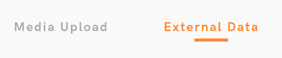
- Select “New Data Source”.

- Give it a name, select “RSS/XML”, and click “Continue”.
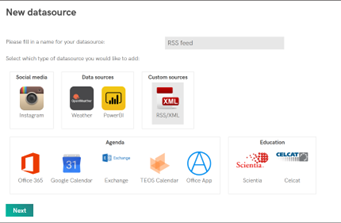
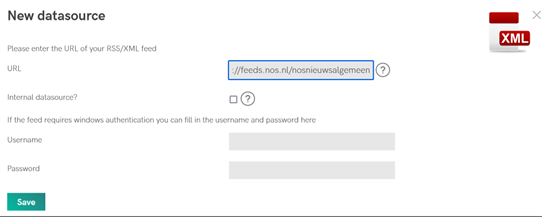
- For this example, a Dutch news website will be used: https://feeds.nos.nl/nosnieuwsalgemeen
- Enter the RSS URL you want to use. Please note that if the website requires a login, fill in the username and password fields. If the feed is internal, select the checkbox next to “Internal Data Source”.
- Select “Save”.
- You can now select the “Eye” icon next to the newly created data source to view the data.

- A new tab will open with the data. If it contains data, you have successfully created an RSS data source.
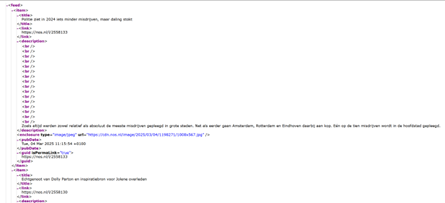
If there is no data, please review the URL or login settings to ensure they are correct.
If the problem persists, please feel free to contact TEOS Support.