
Description
This guide explains how to create an OpenWeather data source.
For the guide on how to create content with OpenWeather, see How to create content with a data source.
Requirements
- Access to TEOS Manage “Media and Data”
How to create an OpenWeather data source
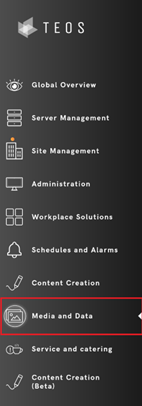
- Log in to TEOS Manage and navigate to “Media and Data”.
- Select “External Data”.

- Here you will find an option to create a “New Data Source”. Select this option.

- A window will open where you can select a data source to create. Select “Weather” and give the data source a name.
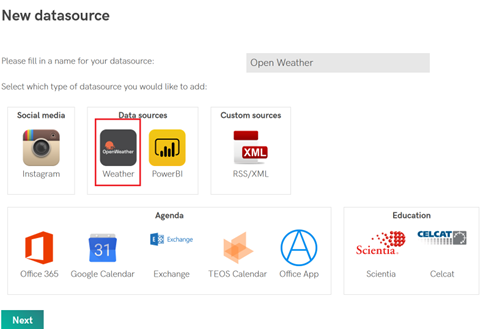
- Select “Next” and enter the location for which you want to gather weather information. After typing a city, wait a moment for the system to find the location, then select the correct option from the drop-down menu.
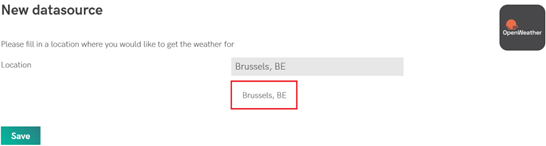
- Select “Save”. You have now successfully created an OpenWeather data source.
For any technical difficulties, please contact TEOS Support: support@teos.support