
Description
This guide explains how to back up your TEOS databases.
Requirements
- Access to the server hosting TEOS
- Sysadmin access to the SQL database
How to back up TEOS databases
- Stop the service called “World Wide Web Publishing Service”. Once this service has stopped, IIS will no longer be active and TEOS will be offline.
- Log in to the database instance currently used by TEOS using ‘SQL Server Management Studio’ (SSMS).
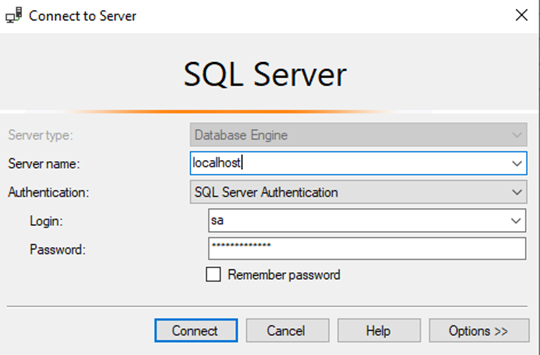
- Create a backup file for the following databases:
- 0000 - TDM Master
- CustomerDB
- Google Calendar Logins
- Sony Sales App
- SonyManagementPortal-Analytics
- SonyManagementPortal-Iot (version 2.2 and above)
- SonyManagmentPortal
- Yammer Logins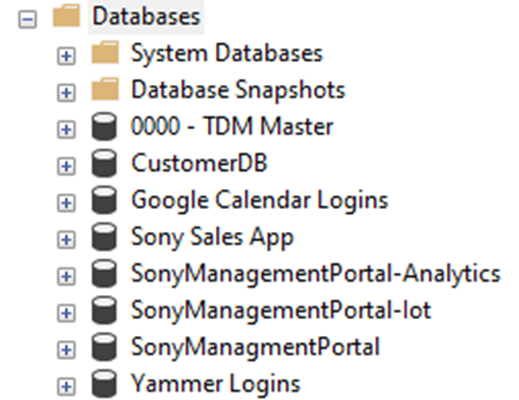
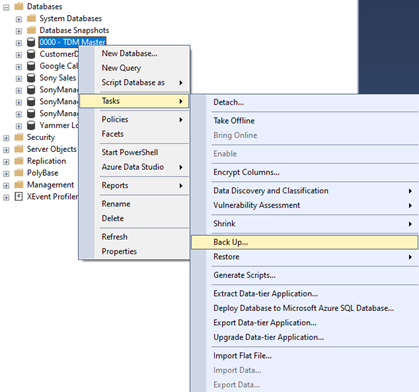
- To create a backup, right-click a database, navigate to “Tasks”, and select the option “Back up”.
- Once selected, a window will open where you can configure the backup. In this window, configure the destination for the backup file. By default, this is:
\ \MSSQL\Backup
Please note that the filename should end with .bak — this is the file extension for MSSQL database files. For example: tdm-master.bak
Once everything has been set, select “OK” to create the database.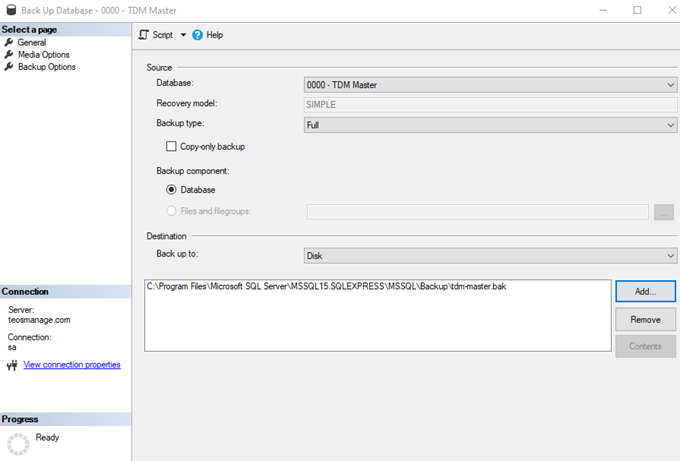
Please repeat the previous steps for all TEOS databases.