Description
This guide explains how to change the application pool user.
Requirements
- Admin access to the TEOS web server
How to change the application pool user
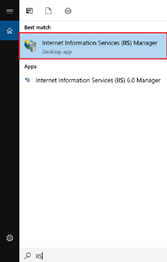
- On your desktop, click on the ‘Start’ menu and open ‘Internet Information Services (IIS) Manager’.
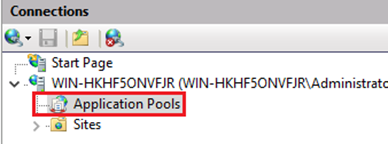
- Now left-click on ‘Application Pools’.
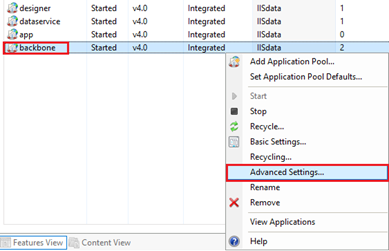
- A list will appear on the right side where you can see all the application pools. Right-click the application pool ‘Backbone’ and select ‘Advanced Settings…’.
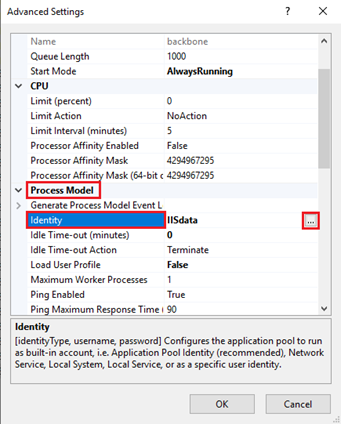
- Under ‘Process Model’, you can see the ‘Identity’. When you select it, you will see ‘…’ at the end of the user. Left-click on it to open a new window.
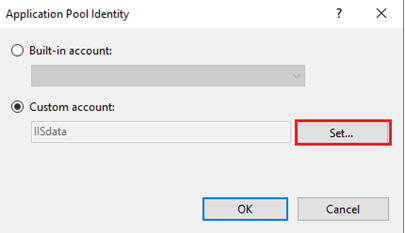
- In the window that opens, you will see ‘Custom account’. The current application pool user will be displayed here. Press ‘Set…’.
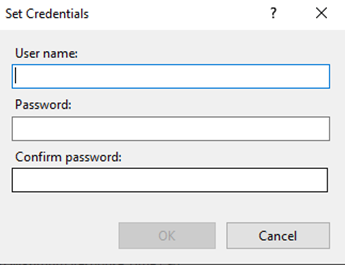
- A window will open where you can fill in the credentials of the user you want to assign to the application pool.
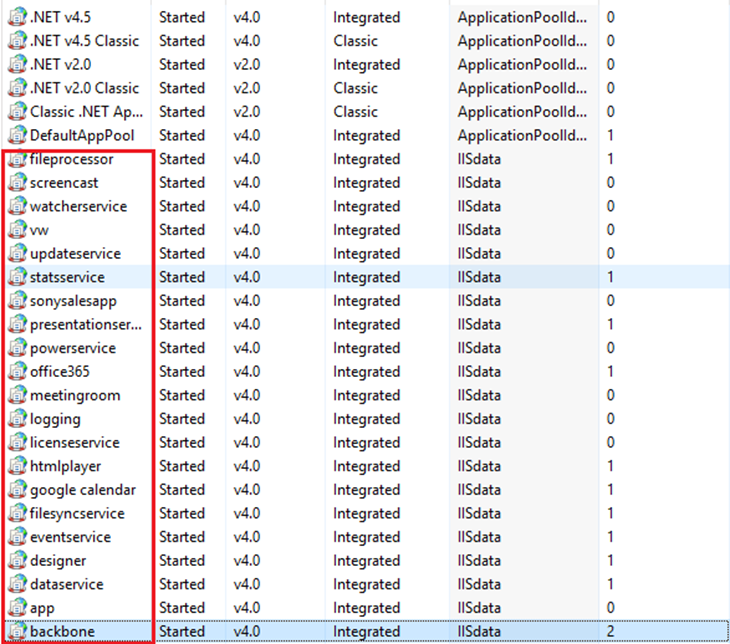
- When this is done, go back to the application pools and repeat the same process for every application pool marked in the screenshot below.