
Description
This guide explains how to check if the application pools are still running. It may happen that one of the application pools crashes. In that case, you can manually start the application pool to resolve the issue.
Requirements
- Administrator access to the server where TEOS has been installed.
- Administrator access to IIS (Internet Information Services Manager)
How to check if the application pools are running
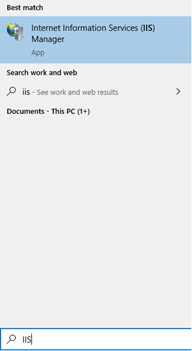
- On your desktop, click on the ‘Start’ menu and open ‘Internet Information Services Manager (IIS)’.
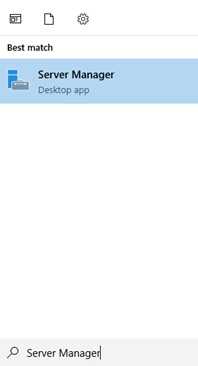
- If you can’t find ‘IIS’ in the ‘Start’ menu, open ‘Server Manager’.
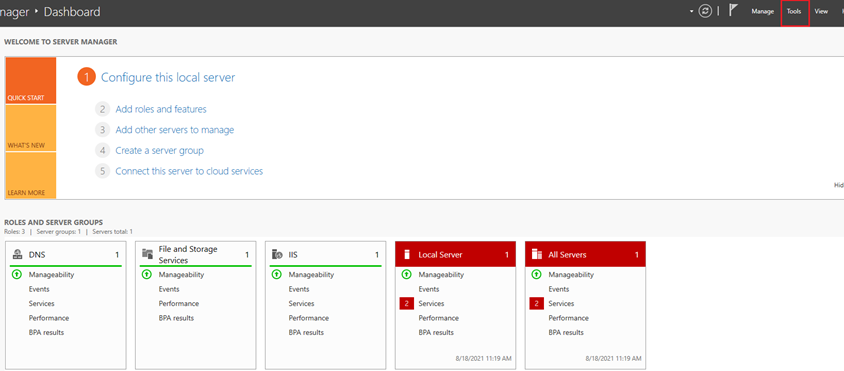
- In ‘Server Manager’, select ‘Tools’ in the top-right corner of the screen.
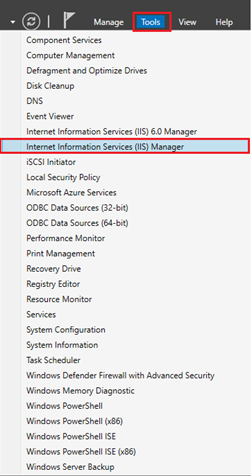
- A dropdown menu will appear. Select ‘Internet Information Services (IIS) Manager’.
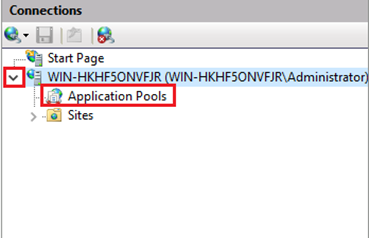
- A window will open showing your server name. If you expand it using the arrow, you will see a dropdown menu. Now select ‘Application Pools’.
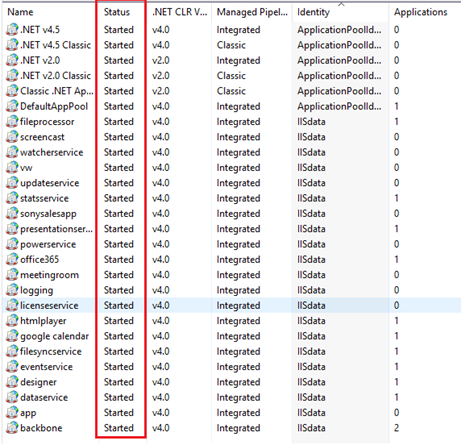
- You will see an overview of all the application pools. Check that the status of all application pools is set to ‘Started’.
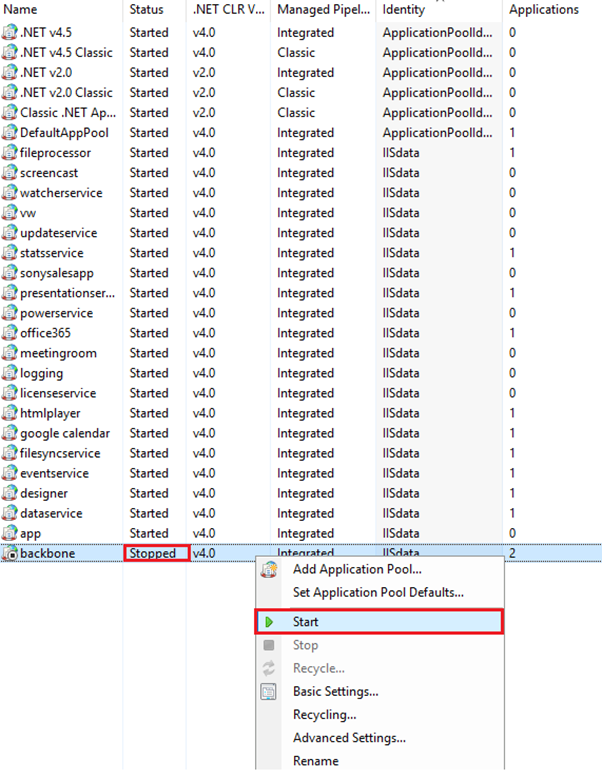
- If one or more of the application pools have the status ‘Stopped’, right-click the application pool(s) and select ‘Start’.
This should solve your issue with TEOS. If not, please contact our support department at support@teos.support.