
Description
This guide explains how to clear the TEOS Android Player app data on a device. Clearing the app data will remove all stored data of an application, which can resolve issues when problems occur with the application.
In this manual, a Sony Bravia will be used as an example. The location of settings may differ on other devices.
Requirements
- Access to the device
- Remote control for the device
- ADB (optional)
How to clear TEOS Android Player app data on a device
- Using the remote, navigate to the settings of the device.
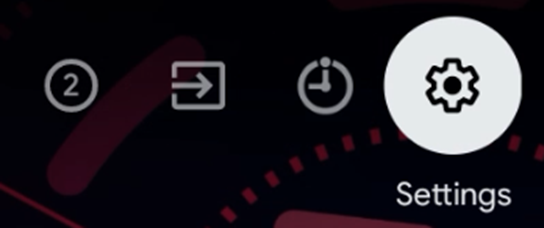
- Once in the settings, search for “Apps”.

- Select the application “TEOS Android Player”.

- In this menu, there will be an option to “Clear data”. Select this.

- Next, select “OK”.

- The app data of the application has now been cleared.
How to clear TEOS Android Player app data using ADB
- Make sure ADB has been set up and is ready to use by following the instructions below:
How to connect to a device using ADB
How to enable ADB/USB debugging
After completing these steps, you can execute the command to clear the app data of an application on the device. - Different applications have different package names. You can clear the app data of an application based on its package name.
TEOS Android Player: com.teos.manage
TEOS Cloud Control: com.teos.cloudcontrol
TEOS Control: com.teos.teoscontrol
TEOS Connect Receiver: com.tdmsignage.teosconnect - In this example, we will clear the app data for TEOS Android Player.
- Type: “adb shell pm clear ” and replace with the desired application package name.

- The app data on the device has now been cleared.
Please note: Some settings might need to be reconfigured, as clearing the app data will remove stored configurations. For example, if TEOS Cloud Control is cleared, the device needs to be re-added to TEOS Manage.