
Description
This guide explains how to create a content schedule.
Requirements
- User access to TEOS Manage
- Access to Schedules and Alarms in TEOS
How to create a content schedule
- Log in to your TEOS web interface.
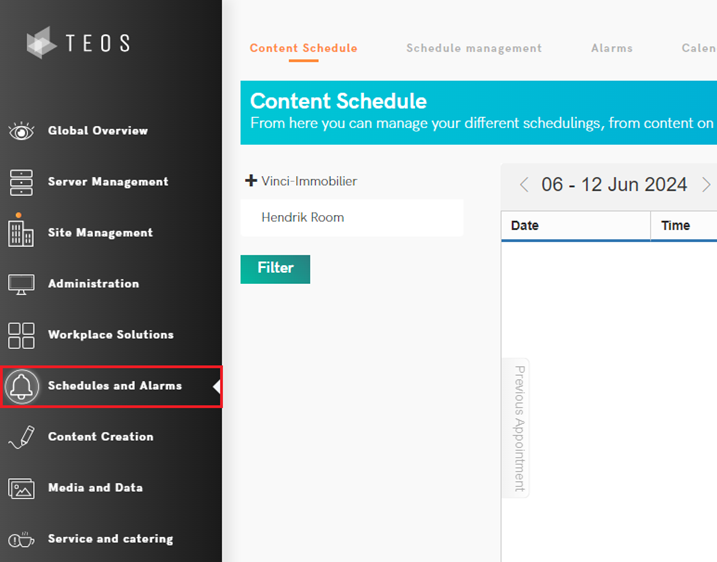
- Go to Schedules and Alarms.
- Select the button ‘Add Schedule’ in the tab ‘Content Schedule’.

- In the next window, select one of the two following options:
Device: Select this option to create a schedule for only one device.
Device Localization: Select this option to create a schedule for a device group. This schedule will also become active on devices connected to groups linked to the selected device group.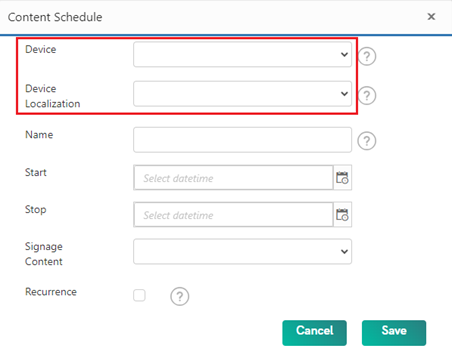
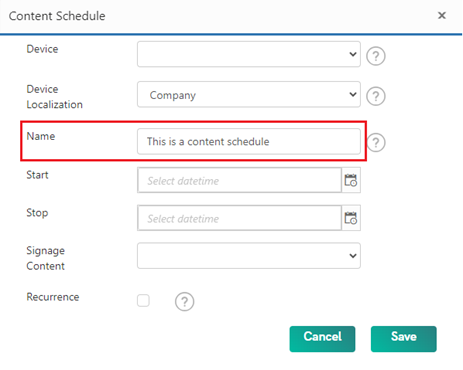
- Once you have selected either Device or Device Localization, enter a name for your schedule.
- The next option in this window is the start and end time for the content schedule. Here you can decide on which day and time the scheduled content should start and end.
Please note: if you use the ‘Recurrence’ option, the start and end date should be on the same day (more explanation on recurrence in point 9).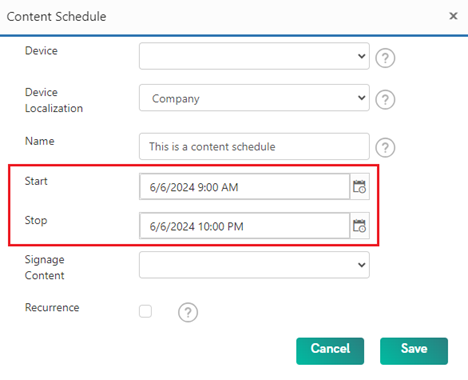
- After these points are set, choose the Signage content you want to schedule.
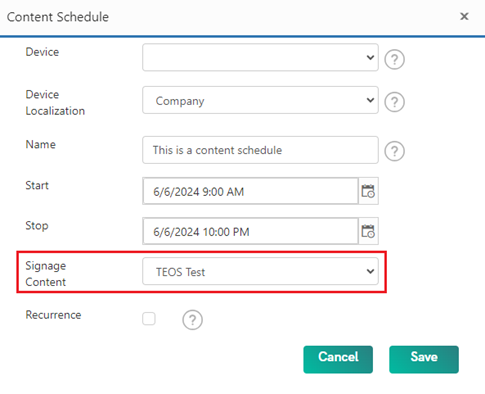
- The last option in the window is ‘Recurrence’. This option is used to duplicate the schedule for a selected number of times. Once you check the box, a new window will appear.
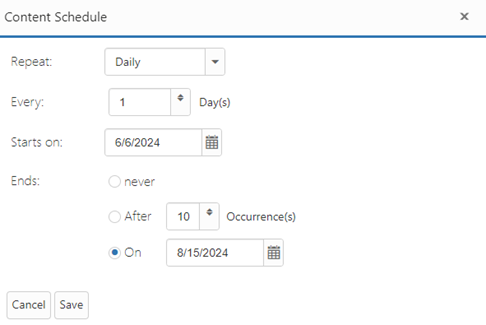
If you want to use recurrence, proceed to point 9 for more information. If you don’t, proceed to point 10. - When setting a recurrence, you will have the following options:
Repeat and Every: For Repeat, you can select the options Daily, Weekly, Monthly, Yearly, or Every Weekday.
Daily: With this option, the content schedule will play every day until the schedule ends.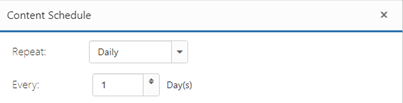
Weekly: With this option, the content schedule will play every week on the selected days until the schedule ends.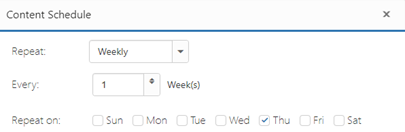
Monthly: With this option, the schedule will repeat every month on a specific day, or on the first, second, third, fourth, or last weekday of the month.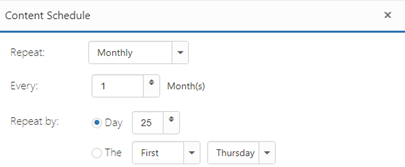
Yearly: With this option, the schedule will play once a year on a specific date, or on the first, second, third, fourth, or last weekday of a selected month.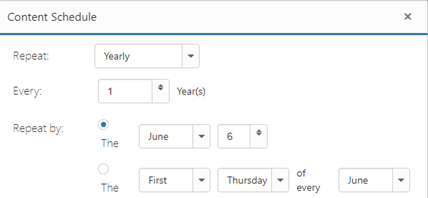
Every Weekday: With this option, the schedule will show the content from Monday to Friday until the schedule ends.
Starts on: Select the date when the recurrence rule should start.
Ends: Select whether you want the schedule to end: never, after a set number of times, or on a specific date. - Once you have completed all the options, press ‘Save’.
You have now successfully created a content schedule.