
Description
This guide explains how to create a disk report.
Sometimes processes can become slow, which could be caused by too much information stored in the database.
In this guide, we will walk you through creating a disk report with SQL to see what is taking up space.
Requirements
- Admin access to the TEOS server
- Login credentials for the SQL database
How to create a disk report
- Start SQL Server Management Studio.
- In most cases, the SQL server is the same as the TEOS server. If so, the local Windows login information can be used.
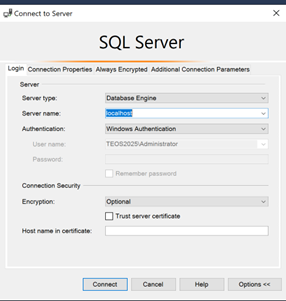
However, in some cases, the SQL server is located on a different machine. In that case, you will need the login credentials for the remote SQL server. - Select “Connect”. You will be presented with the database view. From here, expand the “Databases” folder to show the different installed databases.
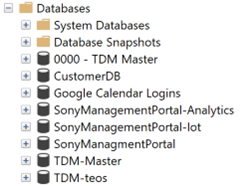
- To create a report for a database, right-click one of the databases and select “Reports”.
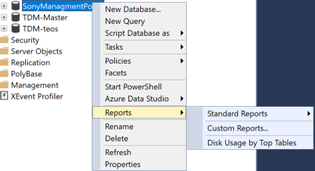
- Select “Standard Reports” and then “Disk Usage by Top Tables”. This report provides detailed data on the utilization of disk space by the top 1000 tables within the database.
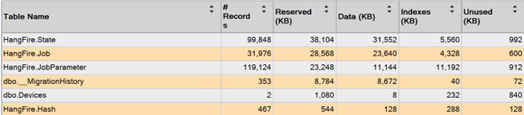
- With this information, you can gain insight into what is using space and how much, to better pinpoint the problem at hand.
For any further questions, please contact support at support@teos.support