
Description
This guide explains how to fix the black screen issue appearing within the TEOS Manage web interface.
Requirements
- Administrator access to the TEOS Manage server and web interface
How to fix the black screen in the web interface
- Open File Explorer and navigate to:
C:\Program Files\TEOS Manage\www\backbone\Content\default_2_0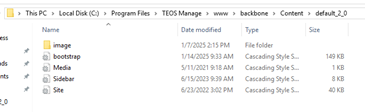
- Create a copy of the “Bootstrap” file and rename the new one to “Bootstrap.old”. This way you always have a backup.

- Edit the “Bootstrap” file by right-clicking it and selecting “Edit”.
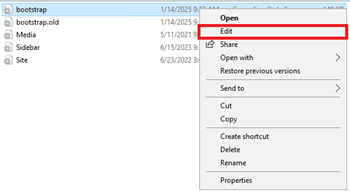
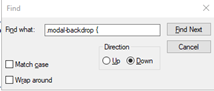
- In the opened Notepad window, press CTRL + F to open the Find dialog.
- In “Find”, search for .modal-backdrop {
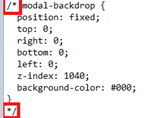
- You will find this section. Add /* before “.modal-backdrop {” and */ below the closing “}”.
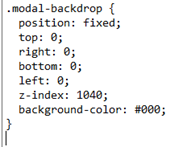
- It should look like this:
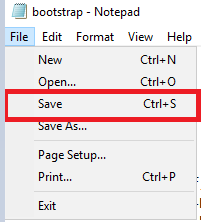
- Save the file by selecting “File” in the top left corner and clicking “Save”.
- Go to the TEOS Manage web interface and press CTRL + F5 to perform a hard refresh of the website.
The issue with the black screen should now be resolved. If not, please contact support@teos.support.