
Description
When updating an on-premise TEOS Server from version 3.x.x to 3.3.0, the installer runs different processes. One of these involves updating the “Web.config” file. There is a chance that this can go wrong. This guide explains how to fix the compile error CS8401 on TEOS Manage 3.3.0.
Please do not use this guide for any version lower than TEOS Manage 3.3.0, as this could corrupt the system.
Requirements
- Administrator access to the TEOS web server
How to fix compile error CS8401: “please use language version '8.0' or greater”
- Log in to the TEOS Server.
- Open File Explorer and navigate to “Program Files\TEOS Manage\www\backbone”. Depending on your system configuration, the drive letter (e.g., “C:\”) may differ. Search accordingly.

- In this folder, locate the file called “Web.config”. First, make a backup of this file.
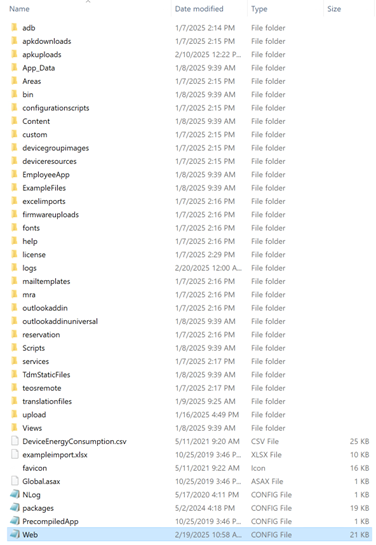
- Copy the file and paste it into a different location, for example, your “Desktop”.

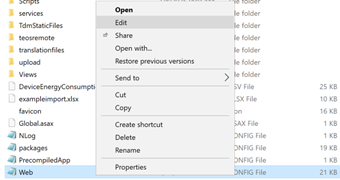
- Once a backup of the file has been made, edit the one located in “Program Files\TEOS Manage\www\backbone”. Right-click the “Web.config” file and select “Edit”.
- Press CTRL + F to open the Find menu.
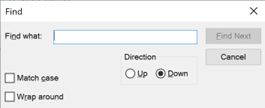
- Search for “langversion: ” and select “Find Next”. This will take you to the “ ” section. It might look slightly different in your case, which is fine.

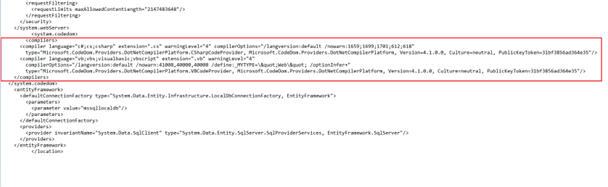
- We need to replace the section that starts and ends with .

-
Replace it with the exact following code:
- It should look exactly like this:
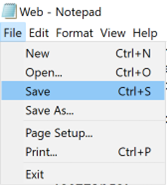
- After replacing the code, select “File” in the top left corner and click “Save”.
- Reload and log back into the TEOS Manage web environment to verify that the problem has been resolved.
If the problem still persists, please contact support.
support@teos.support