
Description
This guide explains how to install, uninstall, and update applications using the Android Debug Bridge (ADB).
Requirements
- Android Platform Tools (ADB)
- Workstation (PC or laptop) on the same network as the device
- Port 5555 open between the device and the workstation
- APK file of the application you want to install or update
Connecting with ADB
- Download the Android Platform Tools from: https://developer.android.com/tools/releases/platform-tools
Please note that ADB is already integrated in the TEOS On-Premise version. Therefore, this step is not required when using TEOS On-Premise. The adb.exe file is located within the TEOS installation folder at:
C:\Program Files\TEOS Manage\www\backbone\adb - Extract the downloaded file to a folder. By default, this will be:
C:\Users\Administrator\Downloads\platform-tools-latest-windows\platform-tools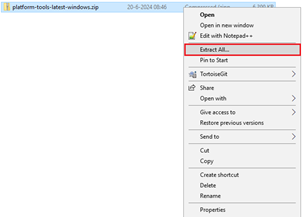
- Open a Command Prompt window (CMD).
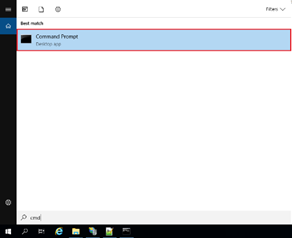
- In the Command Prompt window, type the following to start the ADB process:
cd (the folder containing the adb.exe file)
adb devices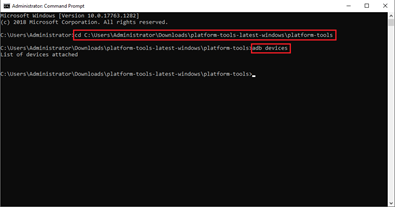
- Execute the following command to connect to a device:
adb connect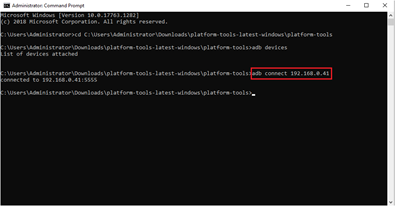
You have now established a connection between ADB and the device.
Installing an application
- To install an application using ADB, ensure that the .apk file is available in the same folder as the adb.exe file.
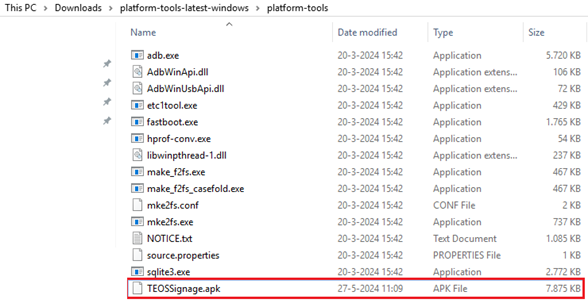
- Installing an application: In the Command Prompt window, type the following command to install an application:
adb -s install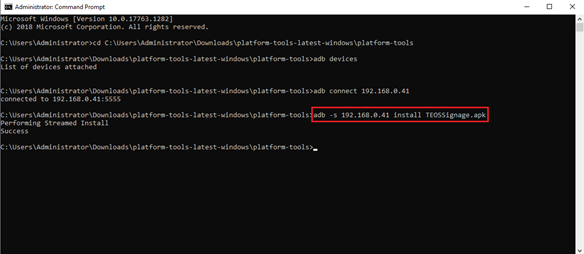
- Updating an application: In the Command Prompt window, type the following command to update an application:
adb -s install -r -d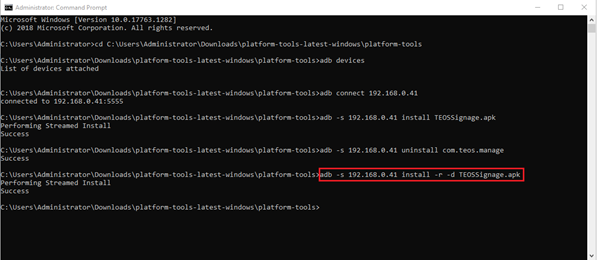
You have now successfully installed or updated an application using ADB.
Uninstalling an application
- To uninstall an application through ADB, you need to know the package name of the application. For TEOS applications, the package names are listed below.
- In the Command Prompt window, type the following command to uninstall an application:
adb -s uninstall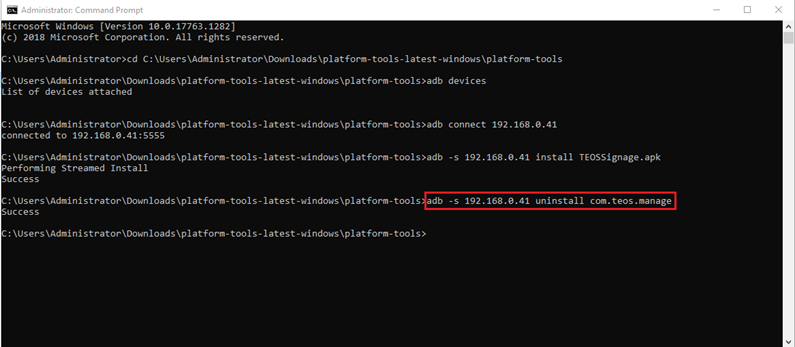
Package names for TEOS applications:
TEOS Android Player: com.teos.manage
TEOS Control: com.teos.teoscontrol
TEOS Cloud Control: com.teos.cloudcontrol
TEOS Connect: com.tdmsignage.teosconnect
BRAVIA Supervisor: com.teos.supervisor
Please note:
It is not possible to uninstall system applications.
You have now successfully uninstalled an application using ADB.