
Description
This guide explains how to troubleshoot content schedules for On-Premise installations.
Requirements
- Manage for TEOS
- Access to the SQL databases
How to troubleshoot content schedules
It may occur that your content schedules are not visible in the TEOS web interface. This can be caused by a content schedule with an incorrect configuration. To resolve this, the database entry needs to be adjusted. Please follow the steps below to fix this issue.
- Open SQL Server Management Studio (SSMS) and log in with a sysadmin user, such as ‘sa’.
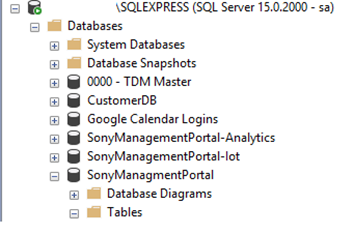
- Navigate to Databases > SonyManagementPortal > Tables.
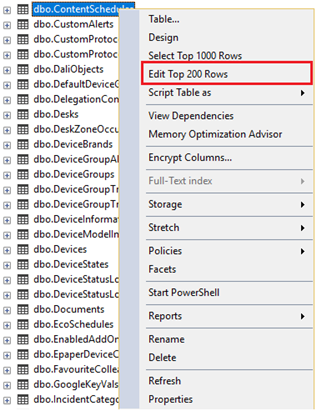
- Right-click the table ‘dbo.ContentSchedules’ and select the option ‘Edit Top 200 Rows’.
- In the window on the right-hand side, you will find the created content schedules. Check if there is any schedule where ‘Recurrence’ is set to ‘True’ and the ‘RecurrenceRule’ is set to ‘NULL’.

- If this is the case, change the value for ‘Recurrence’ to ‘False’.

Reload the page to verify if the content schedules are now showing. If they are still not visible, double-check for any other schedules with the same issue.
The issue has been resolved once the content schedules appear again.