
Description
This guide explains how to troubleshoot Supervisor.
Requirements
- Supervisor version 0.131 or higher installed on an Android 10 Bravia
- Remote control
How to troubleshoot Supervisor for Bravia
Ensure the device is running in Pro Settings Mode before troubleshooting.
(A blue bar at the top stating ‘Pro-Settings in progress’ confirms this mode).
If the device is not in Pro Settings Mode, perform the following sequence on the remote control:
Info (I+) > Mute > Volume + > Home.
The device will now reboot into Pro Settings Mode.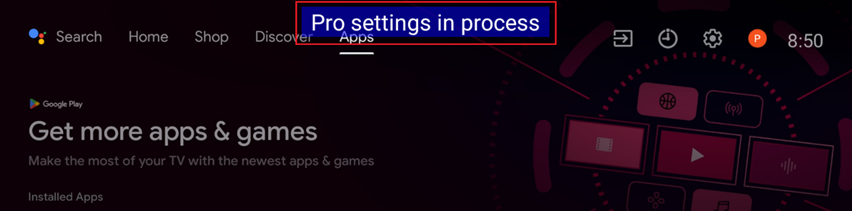
App crashes after opening
If the app crashes when you open it, it could be caused by an incorrect admin password.
Follow the steps below to resolve the issue:
1. Go to Settings > Pro Mode Settings > Admin Password.
Change the password to: sony1234
2. Reboot the device.
After rebooting, open the app to verify whether the issue is resolved.
Error: No devices found with valid connection code
This error can occur if the startup service ‘Web UI’ is not installed.
(The Supervisor app will only display the 7-digit serial number).
1. To install this service, go to:
Settings > Pro Mode Settings > Startup Services > Bravia Web Control UI.
2. Then go to Settings > Pro Mode Settings > Admin Password.
Change the password to: sony1234
3. Restart the Bravia.
4. Open the Supervisor application to verify whether the 10-digit code appears.
(7-digit serial number + last 3 digits of the MAC address).
5. If the application still only shows the serial number, try the following:
Settings > Apps > Bravia Supervisor > Force Close.
6. Open the Supervisor application again to verify whether the code displays correctly.
7. If the code is still not displayed correctly, check the app version:
Settings > Apps > Bravia Supervisor > Version.
If the version is lower than 0.131, please update the app:
Supervisor_0.131