Description
This guide explains how to update the apps installed on your devices directly from TEOS.
Requirements
- Administrator access to TEOS
- Manage for TEOS version 3.0.0 or above
How to update device apps from TEOS
- To update your devices from TEOS, go to: Site Management > Service Management.
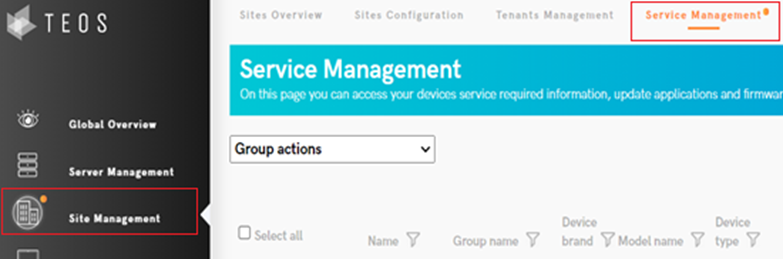
- Click the Android icon in front of the device you want to update.

- Press Test ADB. The device should show the message: : online.
If this is not the case, press Cancel and repeat this step. Then press Next.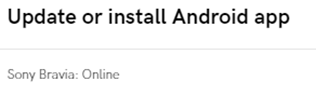
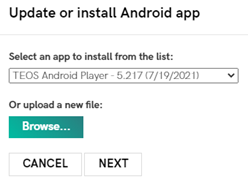
- Open the dropdown menu and select the newest version of the app you want to install. Once selected, press Next to install the application. When the message “Successful” appears, the app has been installed.
- If you want to update multiple devices at once, you can select them using the checkbox in front of each device (or use Select All to update all devices simultaneously).
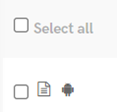
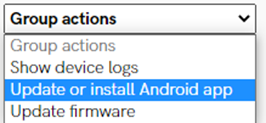
- Once you have selected the devices, click the dropdown bar in the top left corner of the page and select Update or install Android App. After selecting this option, repeat the steps described in 3 and 4.