
Description
This guide explains how to update the firmware of an X102 player.
Requirements
- Workstation (PC or laptop)
- Amlogic V3 Burning Tool
- USB-to-USB cable that supports data transfer
Updating the firmware
- Download the Amlogic tools, firmware, and license from the following URL:
Amlogic tools. - Install the Amlogic tools found in the downloaded folder (V3_setup_V3.2.0.exe).
- Copy the folder named Licence from the downloaded package and paste it inside the installation folder of the Amlogic tools.
By default, this is located at:C:\Amlogic\Aml_Burn_Tool\V3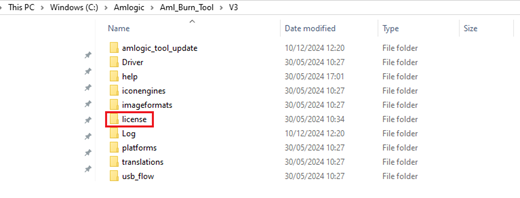
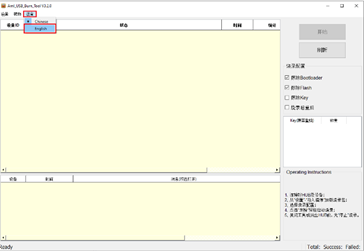
- Open the Amlogic tool (Aml_Burn_Tool.exe). If the language is not set to English, select the third tab at the top, then choose the second option. (Restart the application after making this change.)
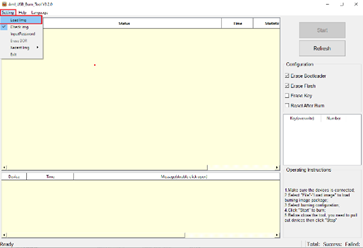
- Upload the firmware by selecting the Settings tab at the top of the window. Click Load Img and select the firmware file from the folder downloaded in step 1.
- Locate the AV-OUT input on the player (there is a small button inside this input).
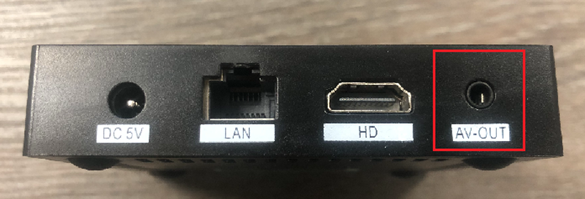
- Press and hold the button inside this input while connecting the USB cable to the device (use the USB-2 port). Continue holding until the Amlogic tool shows a connected device.
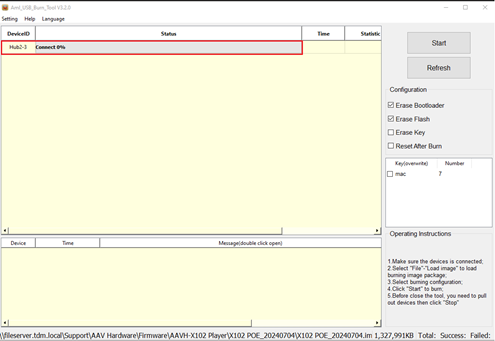
- Select the Start button to begin updating the firmware.
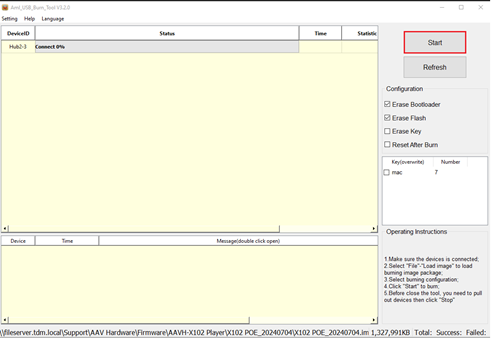
- Wait until the firmware update is complete, then press Stop before disconnecting the device.
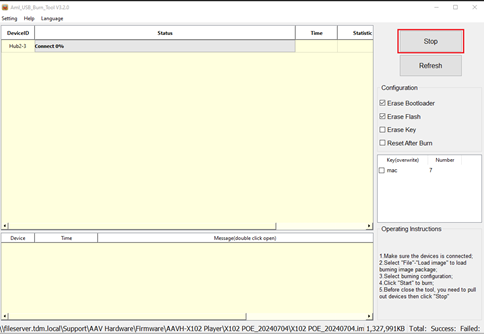
After pressing Stop, disconnect the device.
You have now successfully updated the firmware of the X102 player.