
Description
This guide explains how to update RabbitMQ and Erlang.
Requirements
- Administrator access to the TEOS Manage server
- Access to the internet to install updates
How to update RabbitMQ and Erlang
- Open CMD as Administrator and run the command “cd C:\Program Files\TEOS Manage\RabbitMQ\RabbitMQ\rabbitmq_server-3.13.1\sbin”.

Note that the path can differ based on the location of TEOS and the RabbitMQ version installed. Adjust the command based on the correct path. - Now run the command “rabbitmqctl export_definitions definitions_backup.json”. This will create a backup of the RabbitMQ data.

- Next, install the new versions of Erlang and RabbitMQ.
Erlang version 28 is currently not compatible with RabbitMQ. Version 27.3.4.2 is compatible. See the compatibility matrix for more information. - Erlang installer: Erlang installer
Select the “Download Windows Installer” button.
RabbitMQ installer: RabbitMQ installer
Navigate down to “Downloads on GitHub” and choose the “Windows installer”. - Before installation, the RabbitMQ service needs to be stopped. Open “Services” and stop the service called RabbitMQ.
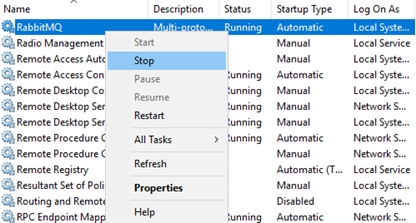
- The old Erlang version now needs to be uninstalled. Open “Apps and Features” and uninstall Erlang.
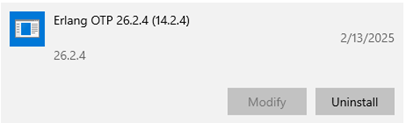
- The new Erlang version can now be installed. Make sure a compatible version is selected. Run the downloaded Erlang installer and ensure that the destination folder is "C:\Program Files\TEOS Manage\Erlang".
- RabbitMQ can now be updated. This will be an in-place update, so make sure not to remove it manually. Run the installer and select “Yes” when prompted to remove the old version.
- After installation, the installer will prompt you to start RabbitMQ. Select “Yes”.
- Erlang and RabbitMQ have now been successfully updated to the latest compatible versions.
For technical difficulties, please contact TEOS support: support@teos.support