
Description
This guide explains how to export and import a room booking template.
Requirements
- Access to TEOS Manage
- User rights for Room Booking
How to export and import a room booking template
- Log in to TEOS Manage.
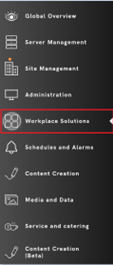
- Navigate to Workplace Solutions and then Room Booking.
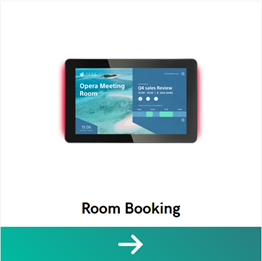
- Select the room booking solution that needs to be exported.

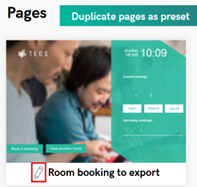
- Under “Pages”, select the page that needs to be exported and click the edit icon.
- When editing the page, select the “Export template” option. Take a screenshot of the page and save it as a .PNG file — you will need this later.
- After exporting, a .zip file will be created and saved on your device. This zip file will be missing a thumbnail, so it needs to be manually created. Make sure the zip file and the thumbnail have the same name.
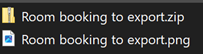
- Return to Workplace Solutions > Room Booking and select “Import template”.
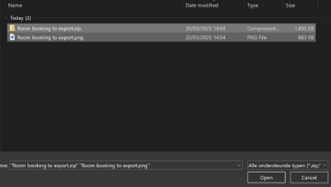
- Select the newly created zip file and the thumbnail (you can select multiple files by holding CTRL) and click “Open”.
- Select “Upload”. It will now appear under templates when creating a new room booking solution, along with the thumbnail you added.
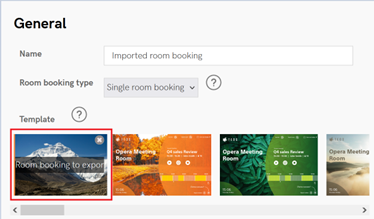
You have now successfully exported and imported a room booking solution.
For any questions, feel free to contact TEOS support at support@teos.support.