
Description
This guide explains how to configure NFC for Room Booking usage.
Requirements
- Tablet with NFC module
- Access to the TEOS web interface
How to set up NFC
- NFC for Room Booking can be enabled within the Room Booking solution found under: Workplace Solutions > Room Booking.
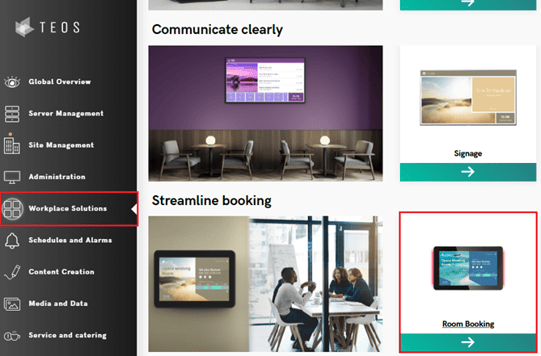
- Create a new (or edit an existing) Room Booking solution.

- Choose a template for your Room Booking solution (this can be modified after pressing “Save”).
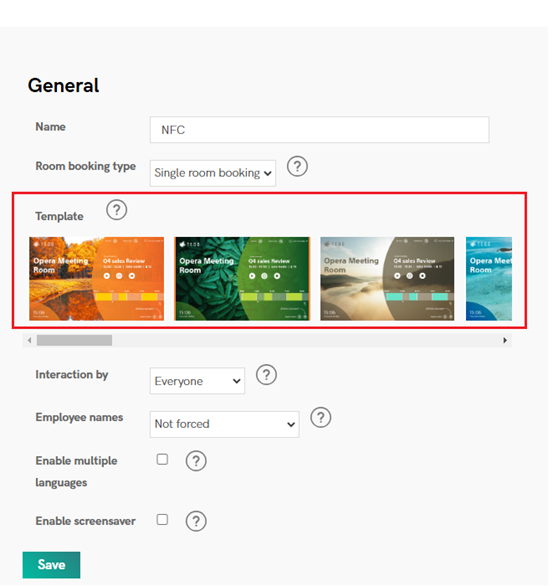
- Once the name and template have been set, you can adjust the following settings for NFC usage:
Interaction by:
Set this to “Organiser only”. Authentication with an RFID reader is required.
Employee names:
Set this to “Organiser only”. Authentication with an RFID reader is required (ID identified in TEOS).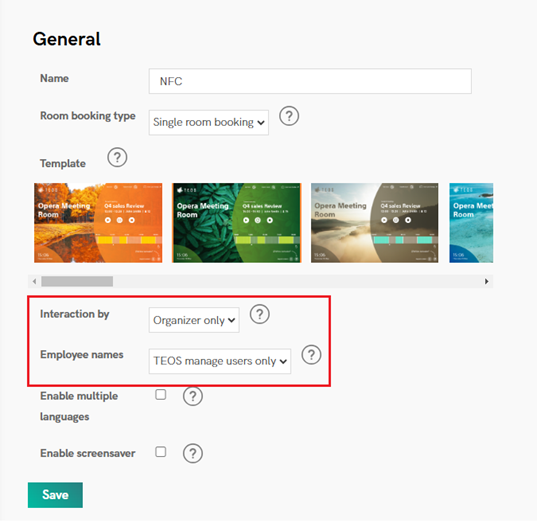
Connecting the NFC/RFID ID to users in TEOS
Once the Room Booking solution has been saved, you will need to add users with their NFC/RFID ID.
This can be done manually or by adding them through Azure AD:
Through Azure AD:
(See our manual on how to set up Azure AD for TEOS.) Add the setting “NFC/RFID ID” with the option “employeeId”.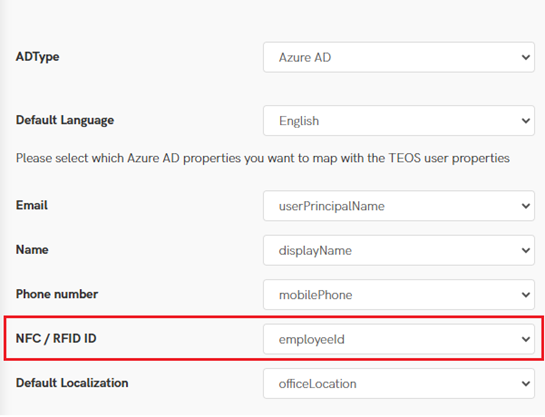
Manually adding the NFC/RFID ID in TEOS:
Go to Administration > AV Devices > Edit the user you want to connect the NFC/RFID ID to.
On the bottom left side of the screen, you will find the NFC/RFID ID option: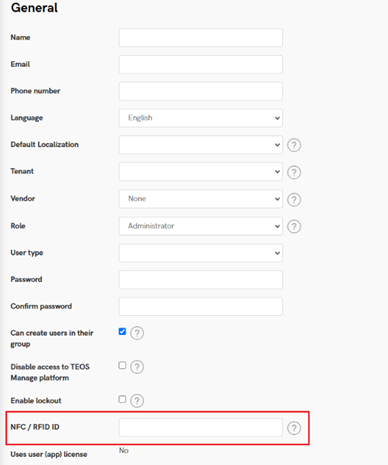
You have now set up NFC for Room Booking.