
Description
This guide explains how to troubleshoot external input problems on a Sony Bravia. When using a Sony Bravia with TEOS, it can sometimes happen that the display shows unusual behaviour regarding the external input. For example, it may switch to an external input when none is connected, or fail to switch when an external input is connected.
This manual will explain the steps for troubleshooting this issue.
Requirements
- Access to the Sony Bravia display
- Pro settings enabled
Troubleshooting external input problems on a Sony Bravia
- First, the device needs to be in Pro Mode. To put the device in Pro Mode, use a remote control and enter the following key combination: INFO + MUTE + VOLUME UP + HOME. This needs to be entered quickly, one after the other.
- Now that the device is in Pro Mode, navigate to the Pro settings of the device.
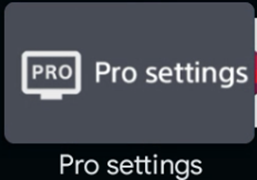
- Navigate to the setting “Wake-up on signal” and make sure it is set to “Input change only.”

- Exit the Pro settings and navigate to the normal settings.

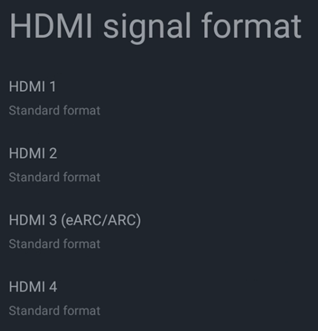
- Select “Inputs > External inputs > HDMI signal format” and set the HDMI inputs in use to “Standard format.”


- Navigate back and select “Apps > Special app access.”


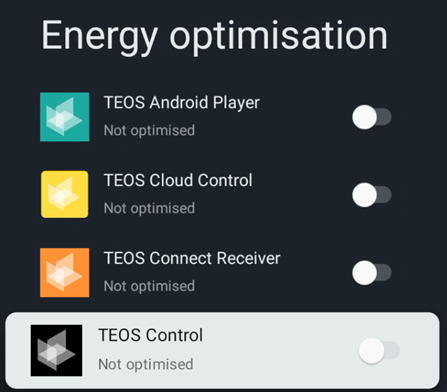
- Select “Energy optimisation.”

- Scroll down until you find the TEOS applications and disable energy optimisation for them.
- Test whether the problem with the external input has been resolved. If this is not the case, please contact support: support@teos.support